
Where badges appear on your shop
A badge can sit in three places, and you choose which when you build it, in the How it shows card.
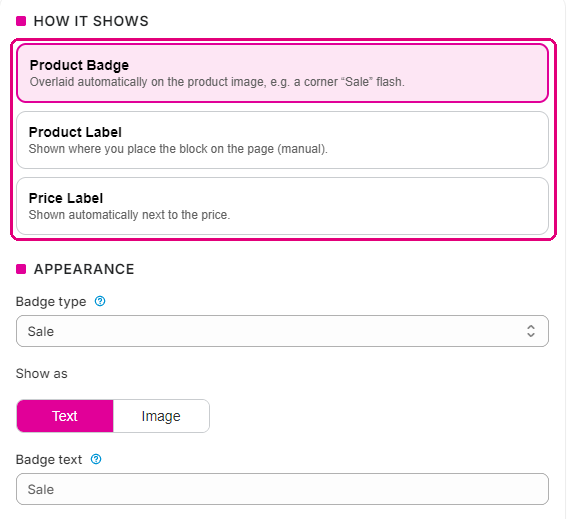
On the product image
This is the default. The badge sits in a corner of the product photo on product pages and on every product card: collections, search results, your home page and related products. You choose the corner, the size and how far in from the edge it sits.
Beside the price
A Price Label sits next to the price. It’s a good home for a saving or a stock count, the details shoppers read alongside what something costs.
In a Product Label block
A Product Label goes exactly where you put it on the product page, above the title or under the Add to cart button. It’s a theme block, so you add it once in the theme editor.
- In Shopify, go to Online Store > Themes and select Customize on your live theme.
- Use the page selector at the top to open a product page.
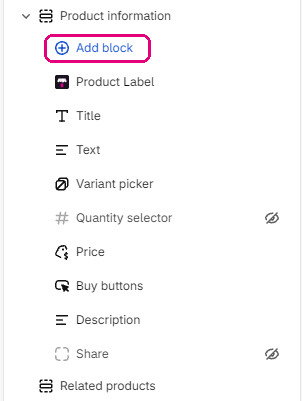
- In the left panel, find your product information section and select Add block.
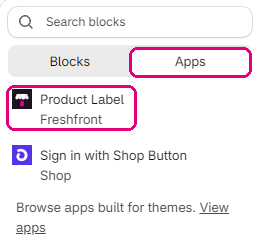
- Choose the Apps tab, then Product Label.
- Drag the block to where you want it.
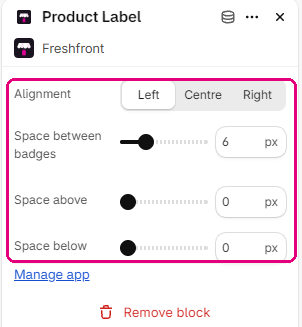
- Set the alignment and spacing in the block settings, then select Save.
Product Label badges only show where you’ve added this block. Image and price badges need nothing beyond the app embed from getting started.
Which pages a badge shows on
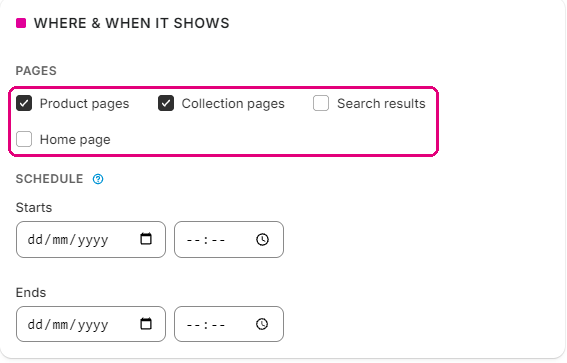
Each badge has its own list of page types, so one can appear on collection pages and stay off product pages. Set this in the badge’s settings, under Where & when it shows.
Themes
We test Freshfront on Dawn, Horizon, Impulse and Prestige. On other themes it finds the product image itself. If a badge sits oddly on yours, tell us which theme and we’ll look at it.