
How Can We Help?
Recipe: add a deadline
A sale with a visible end date pushes harder than one that looks like it runs forever. Give the badge a countdown. Needs Starter or Pro.
You’ll need
- The Sale badge type, or your own rule
- The badge text: Ends in {days_left} days
- A schedule with an end date
Method
- Create a badge and set the Badge type to Sale, or add your own conditions further down.
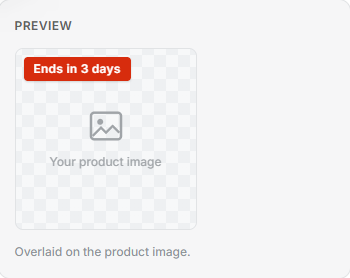
- In the Badge text box, type: Ends in {days_left} days. The preview fills in an example number.
- Open the Schedule and set the End date to when the sale closes. Add a start date too if it hasn’t begun.
- Select Save. The badge counts down by itself and comes off the moment the window shuts.
Tip: {days_left} counts whole days to the end date. Without an end date there’s nothing to count down to, so set one first.