
How Can We Help?
Scheduled collections for flash sales and drops
A scheduled collection appears on your shop when its window opens and hides when it closes. Shopify can’t put a time limit on a collection by itself. Pro plan.
Set one up
- Create a badge for what belongs in it. For a flash sale, use the Sale badge type, or add your own conditions.
- In the Collections card, tick Also build a collection from these products and name it, for example Weekend flash sale.
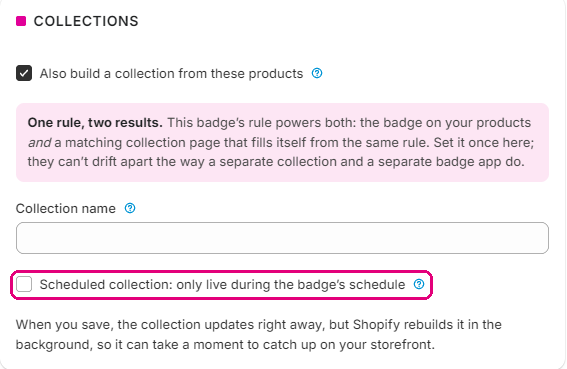
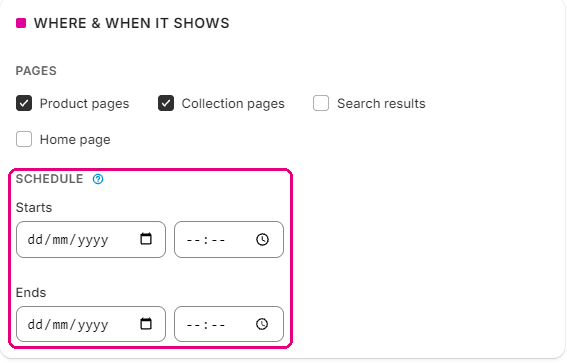
- Tick Scheduled collection, then set the start and end dates in the schedule, under Where & when it shows.
- Choose what happens at the end. Keep it, hidden and ready to run again, or delete it.
- Select Save. The badge and the collection go live together when the window opens, and come down together when it closes.
The Scheduled collection tick is at the bottom of the Collections card:
The dates go in the Schedule section of the same badge:
Ways to use it
- A weekend flash sale that disappears on Monday morning.
- A Summer edit that runs June to August and then retires itself.
- A launch collection that goes live at 9am on Friday.
- Black Friday or Valentine’s, on and off without you there.
- A landing page for one marketing email. Send shoppers to exactly the products in the email, then delete the page when the offer ends.