
Collections that fill themselves
In most shops a collection is built with one rule, and a badge app needs a second rule of its own. Keeping the two in step is a job you do by hand. Freshfront uses the badge’s rule to build the collection as well, so the products wearing the badge and the products in the collection are always the same set.
Build a collection from a badge
- Create a badge, or open one you already have.
- In the Collections card, tick Also build a collection from these products.
- Name the collection.
- Select Save.
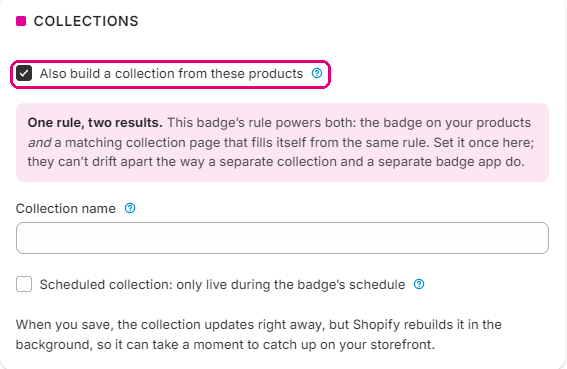
Freshfront publishes the collection to your Online Store straight away. It also adds a Freshfront source to Shopify’s collection builder, so you can reuse the same live list in other collections.
A New in page
Start here. Shopify collections have no date rule, so a New in page normally means adding and removing products yourself. Every plan includes one.
- Go to Badges > Create badge and set the Badge type to New.
- In the Collections card, tick Also build a collection from these products.
- Name it New in and save.
- Find it in Shopify under Products > Collections, or on your shop at /collections/new-in.
A Sale page
- Create a badge and set the Badge type to Sale.
- Tick Also build a collection from these products.
- Name it Sale and save. Anything you mark down joins the page, and leaves when the price goes back.
A Last chance page
- Create a badge and set the Badge type to Low stock.
- Tick Also build a collection from these products.
- Name it Last chance and save. Lines drop off the page as they sell out.
Plans
Free and Starter include one collection, of the New in kind. Pro builds as many as you need from any badge type, and adds scheduled collections.