Badge types
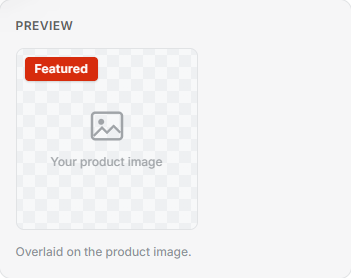
Every badge starts from a type. Pick one and Freshfront sets up the rule behind it, so you never face an empty rule builder. After that it’s yours to change: the words, colours, shape, an icon, and where it shows.
Sale
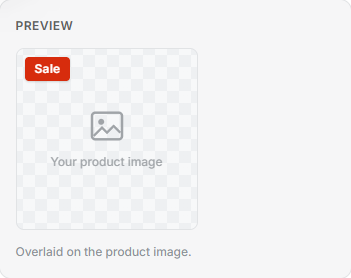
Catches any product with a compare-at price, which means the ones showing a markdown. The same rule can fill your Sale collection.
New arrival
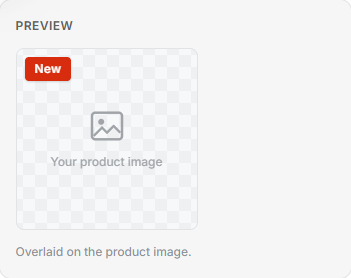
Catches products published in the last 30 days. Change the window to suit how often your stock turns over. Pair it with a New in collection that refreshes itself, something Shopify’s own collection rules can’t do because they have no date rule.
Low stock
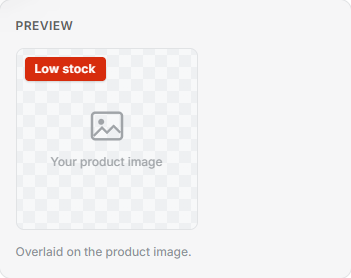
Catches products at or below a stock level you set, 5 unless you change it. Put the live count in the badge text and it ticks down as stock sells.
Coming soon
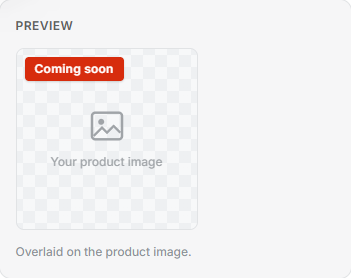
Catches sold-out products that have a restock date set. Products that are sold out with no date stay unbadged. It gives a sold-out line a reason to stay on a shopper’s list.
In-store only
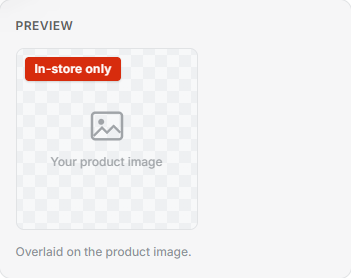
Catches products tagged in-store-only. Shops with a till as well as a website use it to point online browsers at what’s on the shelf.
Custom
Build your own rule from any conditions, or hand-pick the products. Staff picks, brand spotlights, bundles and members-only offers all start here.