
Match products by template or collection
Most badges run on tags, prices or stock. Two conditions reach products those can’t describe: the product template a product uses, and the collections it sits in. Add either one to any badge with Add a condition, or Add another condition if the badge already has one.
Product template
Some shops give certain products a page layout of their own, a product template, such as one called preview for pieces not yet on sale. You can see which template a product uses in Shopify, on the product’s page under Theme template.
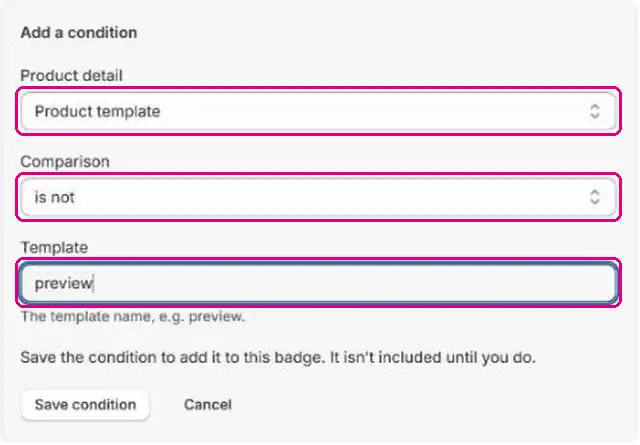
- Add a condition and choose Product template.
- Choose is or is not.
- Type the template’s name. For
product.preview, typepreview. Capitals don’t matter. - Click Save condition. The condition isn’t part of the badge until you do.
It looks at the template and nothing else. A tag spelled the same way doesn’t count.
Keeping New off coming-soon products
A product on its way in is often new as well, so both badges match it. Open your New badge and add Product template is not preview. The coming-soon piece then shows only Coming soon. When it arrives and you move it to your usual template, New takes over by itself.
Collection
- Add a condition and choose Collection.
- Choose is or is not.
- Pick the collection from the list.
- Click Save condition.
The list shows each collection by its handle, the last part of its web address. The collection at /collections/coming-soon appears as coming-soon.
Add a product to that collection in Shopify and the badge follows, usually within a minute or two. It comes off again if you take the product out.
If you rename a collection’s handle, open the badge and pick the collection again. The old handle no longer points anywhere, so the condition stops matching.